| Client | ||
| Server | ||
| .gitignore | ||
| readme.md | ||
| requirements.txt | ||
| Screenshot_MAIN.png | ||


Party Jukebox
This project requires VLC to play sound files
You can use --help on any of the python files to see all the properties that can be changed at runtime
Purpose
The Party Jukebox is a program that allows many people to add music, skip songs, play, and pause from any web device to the same device and playlist.
This was created for a personal use case for parties, and is a simple, (mostly) functional solution to have a collective playlist for local mp3 files.
The main advantage compared to doing something similar using Spotify is that you can limit the songs that can be played to your selection. Songs can be chosen, but only from a list.
Basic Setup
Client Setup:
The client is a web application that can be hosted on any server, it need not be the same device running the music player.
- If the app is being setup for a large group, you can distribute the url (via QR code, for example) with
?ip=YOURSERVERHOSTNAME:19054set as an attribute after the url.
Server Setup:
Pre-setup: If you want the songs to have art associated with them, it is all hosted on and retrieved from LastFM, and you will need to sign up for a developer app, and put your key in the database generator
The server side consists of 3 files:
sound/
databaseGenerator.py
webbyBits.py
- Place mp3 files in the
sound/folder - Open
databaseGenerator.pyand put your LastFM API key in at the top or at runtime using-k APIKey(optional) - Run
databaseGenerator.py- The
databaseGenerator.pywill index all mp3 files, and save the information tosongDatabase.json - If getting images, this process may take a long time with a large amount of mp3 files
- The
- Run
webbyBits.py- The port can be customized at runtime using
-p portNumberas an atribute
- The port can be customized at runtime using
You can now connect with the client and use the app as normal.
Make sure you have turned down/off any other apps that might make noise or notification sounds
Read on for specific information on each piece of the app.
Details
These are specific details on each section of the app, and how to use them
Server:
sound/contains all mp3 files by defaultdatabaseGenerator.pyscans through mp3 files and gets information about themFilename, Title, Artist, Art, Lengthare all saved- If the title and artist are not in the mp3 metadata, it looks for a format of
TITLE_ARTIST.mp3and otherwise defaults to the file name as the title, and no artist - Art is retrieved from LastFM
- If the title and artist are not in the mp3 metadata, it looks for a format of
- Running with
--mode (update/new)either updates the current database and adds new songs/removes deleted songs, or recreates the entire database (update is default, and is faster in art mode) - Running with
--art (True/False)retrieves art from LastFM or doesn't (True is default)- Can only generate one song / 0.25 seconds, to avoid pinging the LastFM server too much
- Running with
--apikey (KEYhere)sets the LastFM key for that run- If this is set to an empty string (Default) the app runs in non-art mode
- Running with
--directory (directoryOfmp3s)allows for sound files to be in a different place- Default
"./sound/" - This setting might be kinda iffy on Linux. You're on Linux just go and edit it if you have issues
Make certain you only use forward slashes in your directory, even on WindowsI think this should be fine now i'll check later
- Default
songDatabase.jsonstores all the information about each song in this format:
{
    "songDirectory": "./sound/",
    "songData": {
        "Circus_Fox Szn.mp3":
        {"title": "Circus",
        "artist": "Fox Szn",
        "art": null,
        "length": 141}
    }
}
webbyBits.pyimports the database, runs all music playing, and accepts all commands from clients- Searches return matching songs
- Accepts Play-Pause and Skip commands
- Uses port 19054 by default
--port (port)changes the port for that run- The default port can be changed in the file
Client:
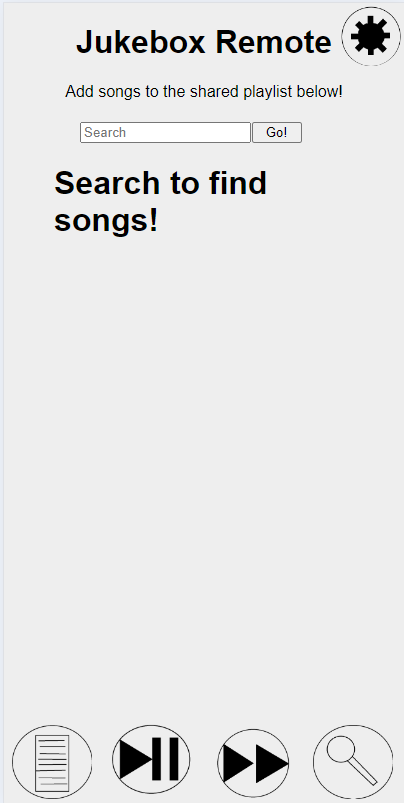
From left to right:
- The playlist button shows the current queue of songs
- The currently playing song is identified, and has the duration listed
- The play-pause button toggles playing
- The skip button goes to the next track
- The search button opens the search screen (pictured)
- The settings button (top right) opens the settings menu
- Server IP allows you to change the ip that the site connects to
- Alert time changes how long error/confirmation messages are shown for (Default 2s)
- Party Mode adds new songs to the queue when the queue has only 1 song in it
- Volume controls the VLC volume of the connected server
- Because the volume can be controlled in the client, for best usage set your device volume as high as possible and turn it down using this slider
- QR code to allow others to connect to and use the Remote